

Figma exports PNG by default. But your site needs WebP. Sometimes AVIF. The conversion tool is always in a different browser tab.
If you have done this more than once, you know the loop. Export from Figma, compress in a separate tool, rename, re-upload. This post shows you how to export WebP and AVIF images from Figma directly, without leaving the plugin.
Export WebP and AVIF Images From Figma
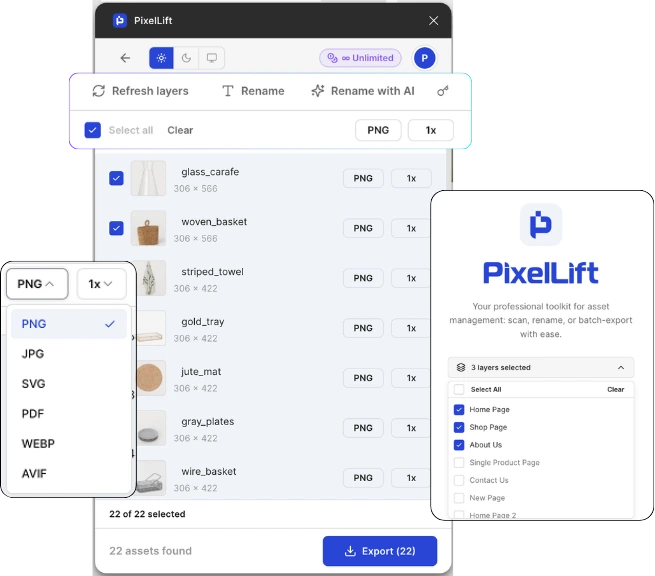
Figma does not natively export WebP or AVIF. To export these formats, install the PixelLift plugin from Figma Community. Open your file, select the layers you want to export, choose WebP or AVIF as the output format, set your quality level, and click export. PixelLift handles compression and conversion inside Figma without any external tools.
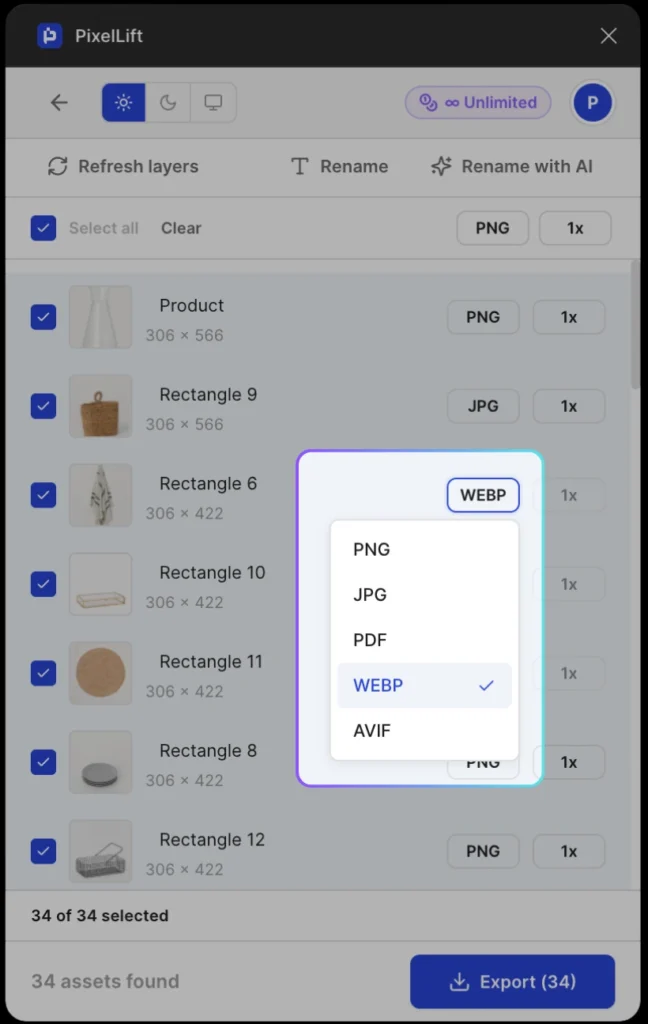
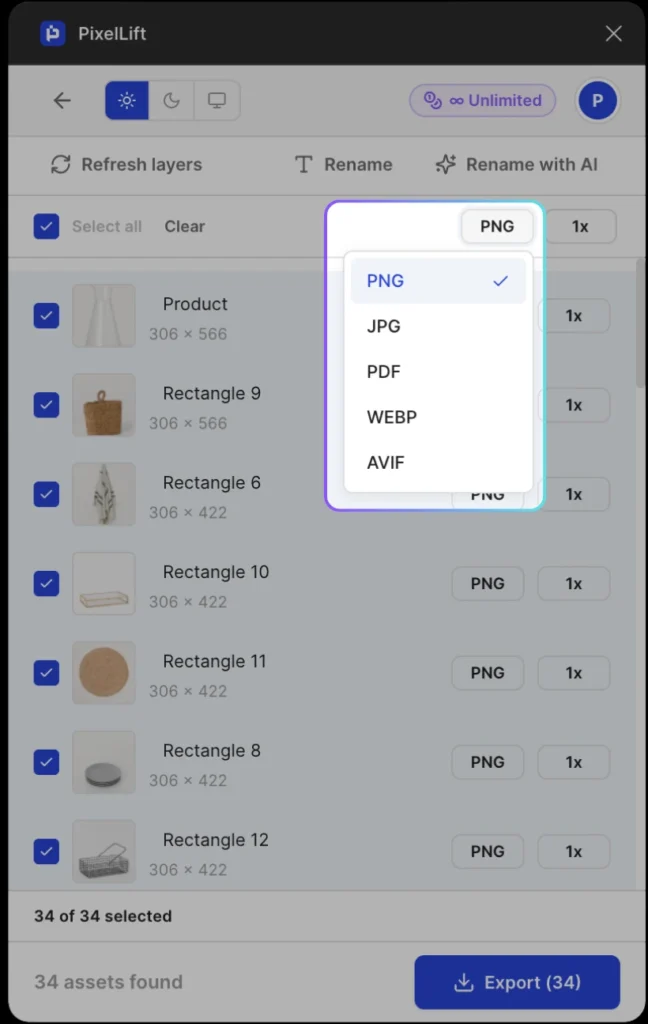
PixelLift adds a format selector directly inside the plugin. Switch any asset to WebP or AVIF with a single click. You can set different formats per asset, or change all of them globally in one action. Quality level is adjustable so you control the trade-off between file size and visual fidelity without leaving Figma.
Why WebP and AVIF Matter for Web Projects
PNG was the default for years. It still works. But it is not efficient.
WebP files are typically 25 to 35% smaller than equivalent PNG files. AVIF goes further, often cutting file sizes by 50% or more compared to PNG – with no visible quality loss at equivalent settings. Smaller files load faster. Faster pages score better on Google PageSpeed and Core Web Vitals. For anyone building sites where performance matters, PNG is the wrong default in 2026.
Browser support is no longer a blocker. WebP works in every modern browser. AVIF support is now above 95% globally across Chrome, Firefox, Edge, and Safari.
Why This Matters: Format choice is a performance decision
Switching a landing page from PNG to WebP typically cuts total image weight by 25 to 35% with no visible quality difference. On image-heavy pages, that translates directly to faster load times, lower bounce rates, and better Core Web Vitals scores – all from changing one setting in your export workflow.
What is WebP?
WebP is a modern image format developed by Google. It supports both lossy and lossless compression and produces files that are 25 to 35% smaller than PNG or JPG at comparable quality. It works in all modern browsers and is the recommended format for most web images.
What is AVIF?
AVIF is a newer image format based on the AV1 video codec. It achieves even higher compression than WebP, reducing file sizes by up to 50% compared to PNG with no visible quality loss. AVIF is supported in all major browsers as of 2024 and is increasingly used for images where maximum file size reduction matters.
PNG vs WebP vs AVIF: File Size and Browser Support
| Format | Typical file size vs PNG | Transparency | Browser support | Best for |
|---|---|---|---|---|
| PNG | Baseline (100%) | Yes | Universal | Lossless, logos, icons |
| JPG | ~40-60% of PNG | No | Universal | Photos, no transparency needed |
| WebP | ~65-75% of PNG | Yes | 99%+ modern browsers | Most web images – replaces both PNG and JPG |
| AVIF | ~40-60% of PNG | Yes | 95%+ modern browsers | Maximum compression, photos, hero images |
Check this post for more details : WebP vs PNG vs AVIF: which image format should designers use in 2026?
Does Figma Natively Support WebP Export?
No. Figma’s built-in export options are PNG, JPG, SVG, and PDF. WebP and AVIF are not available in Figma’s native export panel. To export these formats, you need a plugin.
This is not a minor gap. Most web projects today should be delivering WebP as the default format. Having to export as PNG and convert separately adds time on every project, for every image, every time a design changes.
PixelLift is the plugin that fills this gap. Search for it directly in Figma’s quick search or the Figma Community panel and it appears as the top result. Install takes under 30 seconds. Once installed, it is accessible from your Plugins menu on any Figma file without any external setup.
The Manual Workaround (and Why It Falls Short at Scale)
The workaround most developers and designers use looks like this:
- Export assets from Figma as PNG or JPG
- Open a separate compression tool in another browser tab
- Upload the exported files, convert to WebP or AVIF, download the converted files
- Rename the files to match your project’s naming convention
- Upload to your server or WordPress media library
This works. For one or two images, it is fine. For 20 or 50 layers across a full project, it takes 30 to 90 minutes. And when the designer updates three images after the first review round, you do the whole thing again.
The format conversion step is the most annoying part because it is entirely mechanical. You are not making decisions. You are just moving files between tabs.
How to Export WebP From Figma Using PixelLift
PixelLift is a Figma plugin that adds WebP and AVIF export to Figma natively. You select your layers, choose your format, and export. No external tools, no re-uploading, no extra tabs.
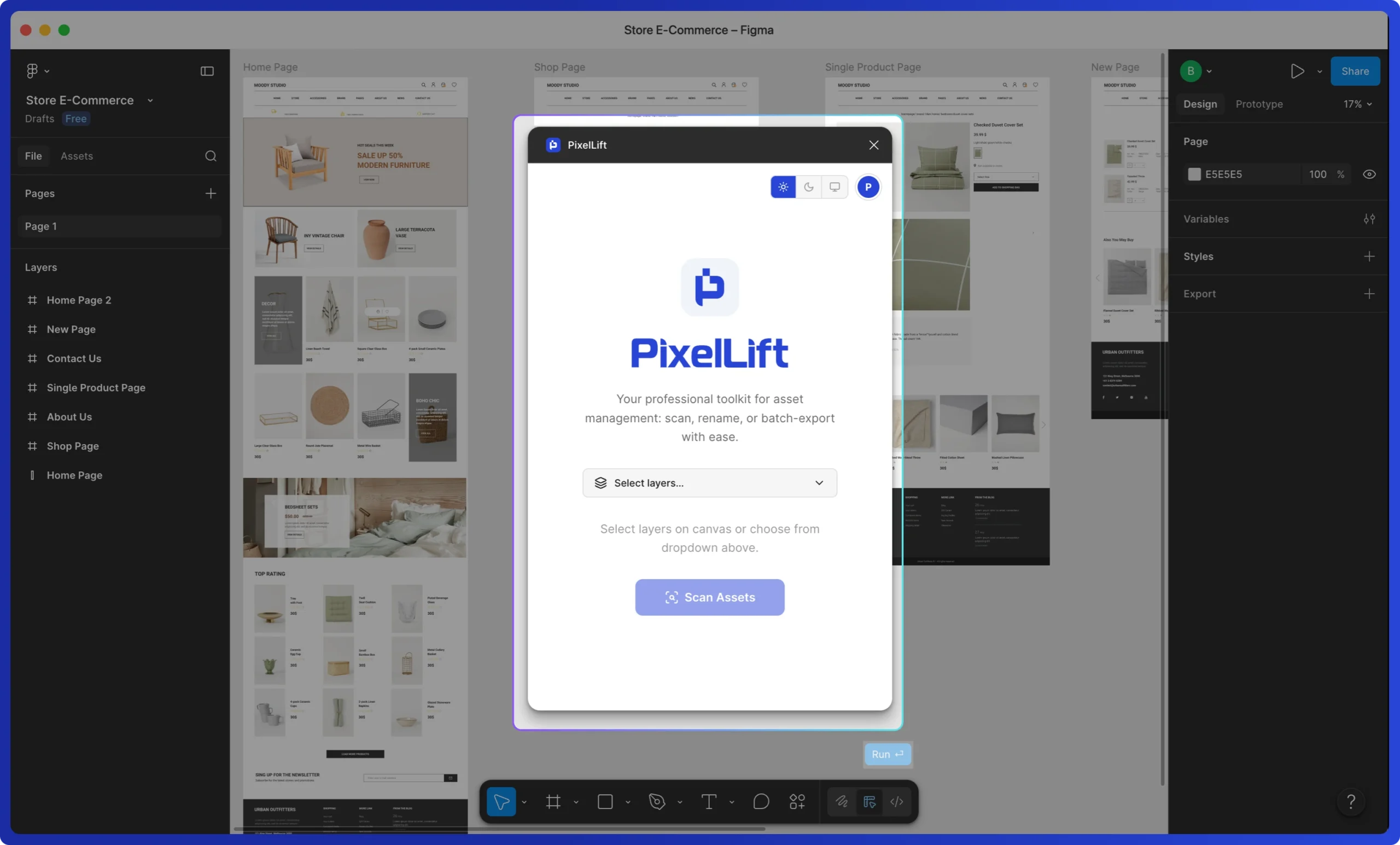
When you open PixelLift inside a Figma file, it presents a clean launch screen with a layer selector and a Scan Assets button. Select the pages or frames you want to export, hit Scan, and the plugin surfaces every exportable asset in your selection – including deeply nested layers – ready for format and naming configuration.
Here is the exact workflow:
Step-by-Step: Export WebP or AVIF With PixelLift
- Install the plugin. Search for PixelLift in Figma Community and install it. It takes about 30 seconds.
- Open your Figma file. Open the project with the assets you want to export.
- Select your layers. Select one layer, a group, a frame, or any combination. PixelLift will surface all exportable assets within your selection, including deeply nested layers.
- Open PixelLift. Go to Plugins > PixelLift. The plugin opens and shows all the assets it found in your selection.
- Choose your format. Change the file extension to WebP or AVIF using the format selector. You can also set quality level here – lower quality means smaller files.
- Rename if needed. Use the rename, prefix, or suffix fields to apply your naming convention to all files at once. No more “Frame 1234” in your export folder.
- Click export. PixelLift exports all selected assets in your chosen format, compressed and renamed.
For a project with 50 layers, this takes under two minutes. The same job done manually takes 45 to 90 minutes depending on how many renames you need. When assets update, you re-scan and export – no re-running the manual loop.
What Else PixelLift Handles in the Same Export
Format conversion is the most common reason people install PixelLift, but the plugin does more in the same step:
- Bulk export of 50+ layers in a single action
- Rename files directly inside the plugin before exporting
- Add prefix or suffix to all files at once (e.g. “client-name_hero-v2”)
- Set scale and quality per export – optimize for web performance or print
- AI-powered renaming – PixelLift looks at the visual content of each layer and suggests an intelligent file name
The AI rename feature is one of the most time-saving parts of PixelLift. Instead of manually naming each exported asset, the plugin reads the visual content of each layer and generates a descriptive, slugified file name. For a batch of 20+ product images, this replaces 10 minutes of manual work with a single click.
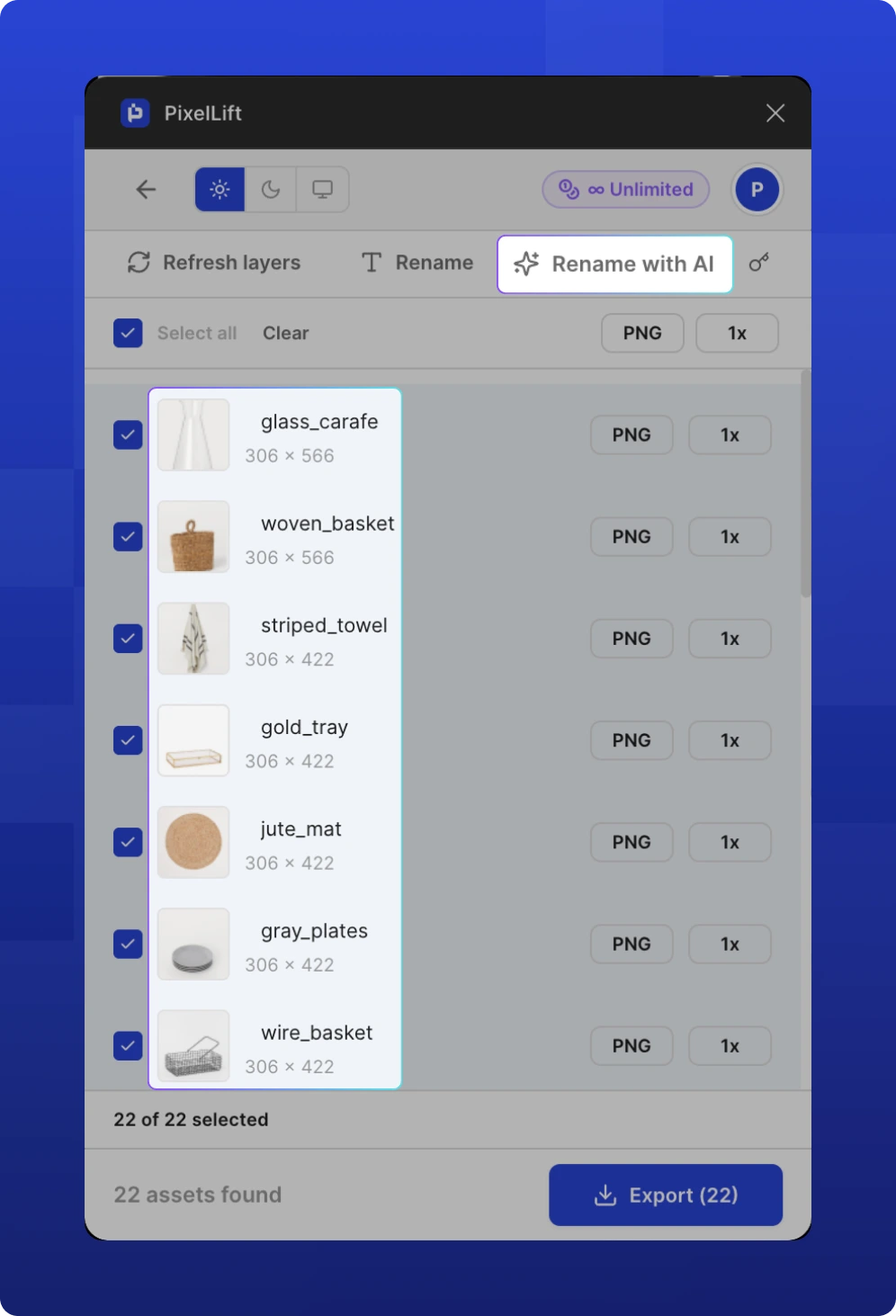
You get format conversion, compression, and naming in the same export action. That is the full manual loop replaced with one workflow.
What This Means for Your Projects
Switching from PNG to WebP on a typical landing page cuts total image weight by 25 to 35%. On a page with 20 hero images, banners, and product shots, that translates directly to faster load times and better PageSpeed scores. For WordPress sites, where image weight is often the single largest performance issue, it matters.
Beyond performance, the bigger win is time. The download-compress-rename-reupload loop is gone. When a designer updates three images on a project you shipped last week, you select the updated layers in Figma and export directly. No re-downloading the whole folder. No re-running through a compression tool.
Key Takeaway: One format change, compounding returns
Switching to WebP or AVIF is a one-time workflow change that pays off on every project you ship after it. Smaller images, faster pages, and no more compression tabs open in the background.
Frequently Asked Questions
Does Figma natively support WebP export?
No. Figma’s built-in export panel supports PNG, JPG, SVG, and PDF only. To export WebP or AVIF directly from Figma, you need a Figma plugin. PixelLift adds WebP and AVIF export to Figma, along with compression, bulk export, and file renaming.
What is the difference between WebP and AVIF?
Both are modern image formats designed for the web. WebP, developed by Google, reduces file sizes by 25 to 35% compared to PNG. AVIF, based on the AV1 video codec, achieves even higher compression, typically 40 to 60% smaller than PNG at equivalent quality. AVIF is better for maximum compression. WebP has slightly broader compatibility and is the safer default for most projects. Both formats support transparency.
Can I bulk export WebP files from Figma?
Yes, with a plugin. Figma’s native bulk export does not support WebP. PixelLift lets you select 50 or more layers at once and export all of them as WebP or AVIF in a single action. You can also apply renaming, prefixes, and quality settings to all files in the same step.
Will WebP work on my WordPress site?
Yes. WordPress has supported WebP natively since version 5.8. Most modern WordPress themes and page builders handle WebP without any configuration. AVIF support was added in WordPress 6.5. If you are on an older version, a caching or image optimization plugin can add WebP support.
Install PixelLift and Export WebP From Your Next Project
If you have done the export-compress-rename loop more than twice, install PixelLift from Figma Community and run it on your next project. It takes 30 seconds to set up and the format selector is the first thing you will see.