

Getting images from a Figma assets to your site takes eight steps. It should take three. Here is how we found that out the hard way, and what we built because of it.
Most developers accept the Figma asset export process as just part of the job. It is not. It is an 8-step manual loop that eats hours on every project. This post breaks down exactly where the time goes and how PixelLift, a Figma plugin for bulk export and format conversion, cuts it down to three steps.
Why Getting Figma Assets to Your site Takes 6 Steps (and Shouldn’t)
You get a Figma link from a designer. You need 30, 40, maybe 50+ images from it. Hero banners, icons, product shots. You message the designer. They export the files, drop them in a shared folder, and send a link.
You download the folder. Half the files are named “Rectangle 45” or “Group 12.” You rename them manually. Then you open a compression tool, convert to WebP one by one because the site needs WebP and Figma does not export it natively. Then you re-upload to FTP or the WordPress media library.
Two hours later, the designer says one image changed.
You do it again.
We Counted the Steps. Then We Couldn’t Unsee It.
We build web projects. For a long time, this loop was just part of the job. You told yourself it was not that bad.
Then we actually counted.
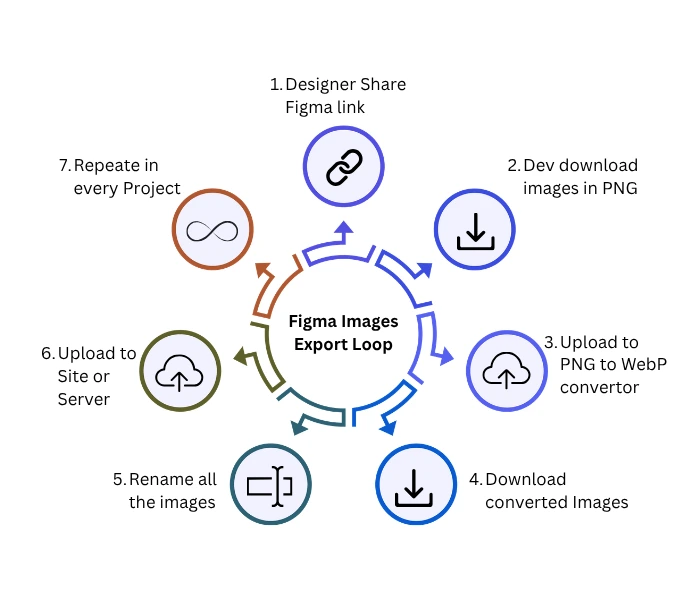
Six steps, 2-3 different tools, For images. On every single project.
And that is the happy path. No late image changes, no mismatched formats, no “can you send them in WebP?” conversation after everything is done. When we laid it out like that, it was hard to pretend this was acceptable. The actual development work was taking four hours. Getting images into WordPress was taking two. That ratio is completely wrong.
Why Most Export Tools Don’t Solve This
Figma’s native export is fine if you need one file and don’t care about format or compression. For a real project with 50+ layers, it falls apart fast.
Most compression tools are good at what they do. They’re just separate tools. You download from Figma, compress externally, then come back. The problem is the round trip, not the compression itself.
Other bulk export plugins handle scale reasonably well but still don’t do WebP or AVIF natively. You still need another step to convert. None of them solve the full problem in one place, and none of them let you skip the local download and push directly to the server.
How PixelLift Compresses 8 Steps Into 3
We built PixelLift, a Figma plugin that cuts this down to three steps: select layers, configure settings, export.
You can select 50+ layers at once, preview each asset before exporting, rename files directly inside the plugin (no more “Frame 1234”), and add a prefix or suffix across all exports in one action. You can export directly to PNG, JPG, WebP, or AVIF.
WebP and AVIF reduce file sizes by up to 80% compared to PNG with no visible quality loss. That is not a marketing claim. That is the actual compression math. If you have been manually converting files to WebP after exporting from Figma, this removes that step entirely.
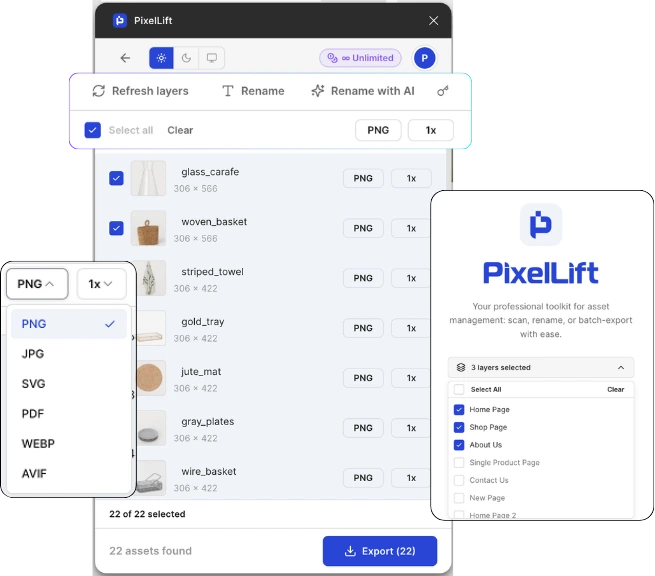
There is also AI-powered renaming that looks at the visual content of a layer and suggests an intelligent file name, and one-click background removal. Both built in, no third-party tool needed.
Install PixelLift and Run It on Your Next Export
If you have done the download-compress-rename-re-upload loop more than twice on a project, install PixelLift from Figma Community and run it on your next export. It takes about 30 seconds to set up. See the quickstart guide if you need a step-by-step walkthrough.
We built it because we were tired of doing this manually. If you have been too, it will feel immediately obvious.
Built by a small team that felt this pain on real client projects. That is why the plugin exists.