

The fastest way to export assets from Figma workflow is three steps: select your layers, configure your settings once, and export everything in a single action. If your current process involves clicking through assets one by one, downloading PNGs and running them through TinyPNG, and renaming files after they hit your downloads folder, this guide will fix all of that.
You’ll walk away with a repeatable process for bulk exporting, in-plugin renaming, consistent naming conventions, scale and quality configuration, and modern format output (WebP, AVIF, SVG) without ever leaving Figma.
It's 10pm. Client launch is tomorrow.
Jamie opens her Figma file: 72 icons, 3 hero images, 14 product thumbnails. Every asset needs a clean name, an @1x and @2x export, and WebP conversion. The developer is waiting.
She's done this before. Click each asset. Download the ZIP. Rename files in Finder. Run them through a browser-based compressor. Re-upload. Repeat.
Two years. Every project. Same routine. About an hour, every time.
This time she used PixelLift. Nine minutes. Done.
If that scenario sounds familiar, you’re not doing it wrong. Figma’s export tools are built for design review, not production delivery. The gap between what Figma gives you and what production actually requires is where the 6-step Figma export problem lives. This guide closes that gap step by step.
Key Takeaways
- Figma’s native export requires manual configuration per layer; PixelLift applies settings across the entire batch in one run
- Bulk export, in-plugin renaming, prefix/suffix, and scale settings all happen before any files hit your computer
- WebP and AVIF export is built into PixelLift: no TinyPNG, no Squoosh, no re-uploading
- Preview any asset inside the plugin before exporting to eliminate re-export cycles
- The right export workflow saves hours on large projects and reduces developer re-requests to near zero
The problem with exporting assets directly from Figma
Figma’s native export works fine when you need one frame. A quick screenshot to share with a client, a single icon to drop into a Notion doc. That’s what it’s designed for.
When you’re exporting 20, 50, or 100+ assets for a production project, the process starts to compound. Every step that is fine once becomes painful at scale.
Here’s what the default Figma export process actually looks like on a real project:
- Select a layer in the Figma canvas
- Open the design panel and scroll down to the Export section
- Set the format and scale for that asset
- Click “Export [Layer Name]”
- Repeat for every single asset
- Rename the files because Figma named them after your layers (“Frame 1234”, “Rectangle 45”)
- Compress and convert to WebP because the developer asked for it and Figma can’t do either
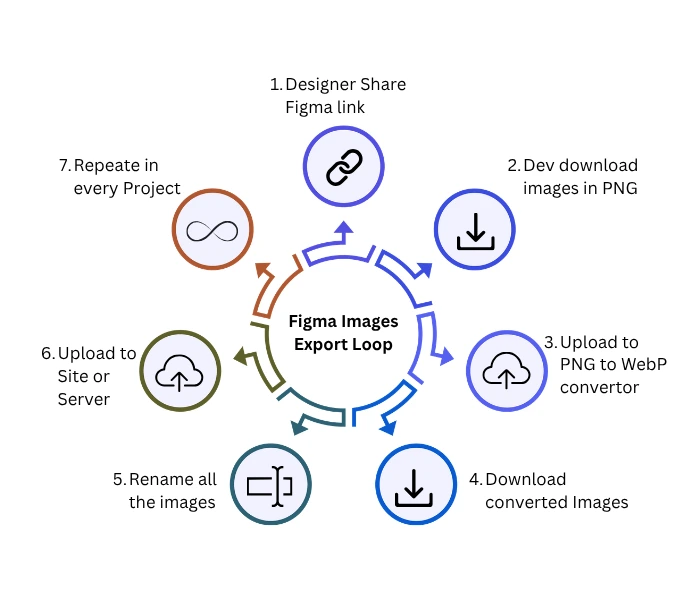
Six to seven steps, repeated per asset or for all at once, with no way to batch configure settings across a selection. On a 60-asset handoff, that’s a multi-hour process before a single file reaches the project folder in a usable state.
| Task | Figma native | PixelLift |
|---|---|---|
| Surface all assets in a selection | Manual, one by one | Automatic on selection |
| Export settings (format, scale, quality) | Per-layer configuration | Once per export run |
| Preview before download | Not available | Built in |
| Rename assets | After download, in Finder | Inside the plugin, before export |
| Apply naming prefix/suffix | Manual, one file at a time | Batch, one setting |
| Export to WebP or AVIF | Not supported | Native support |
Key Takeaway: every row in that table is a step you can eliminate
The problem is not any single step. It’s the accumulation. PixelLift removes the steps that only exist because the tools don’t talk to each other.
Step 1: Select layers and surface all exportable assets
The first part of a faster figma asset export workflow is selection. In Figma’s native export, selecting a frame exports that frame as a single image. To export the 30 icons inside that frame individually, you select 30 layers. On a component-heavy file with nested groups, finding and selecting every asset becomes its own task.
PixelLift works differently. Select any layer the plugin scans the entire selection to find every exportable asset inside it, regardless of how deeply nested.
How to select effectively
- Open PixelLift from the Figma plugins menu (Plugins > PixelLift)
- In the Figma canvas, select the layer that contains your target assets
- PixelLift scans the selection and lists every exportable image in the plugin panel
- Deselect any assets you don’t need in this export run before proceeding
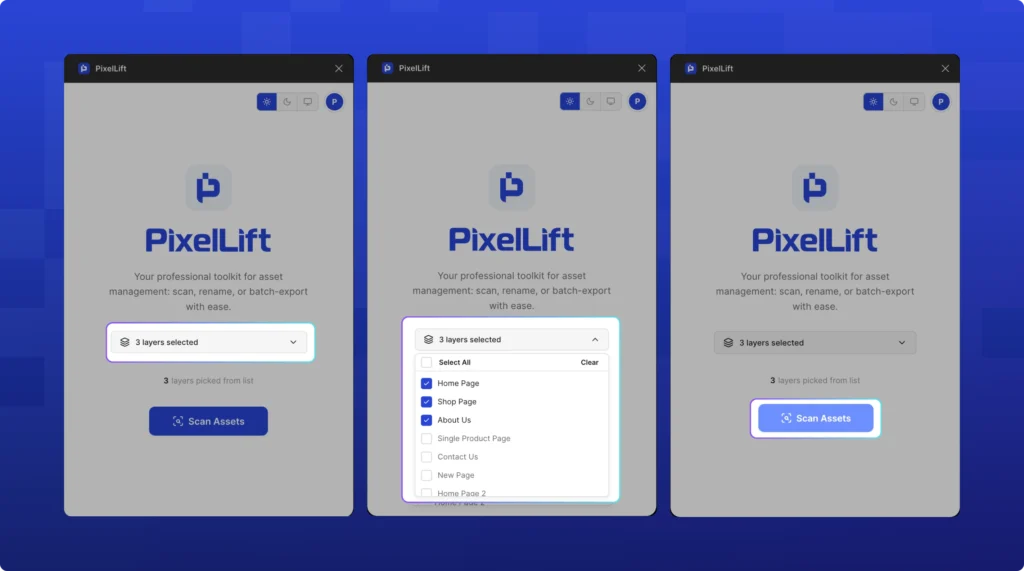
Stop digging through nested layers. Select a layer and PixelLift finds everything in it.
Tips for complex files
On large files with multiple pages, run PixelLift separately per page. The scan covers what’s active on the current page. Keeping exports page-by-page avoids mixing asset sets from different sections of the project and makes the output folder easier to manage.
If your file uses component libraries, PixelLift surfaces instances along with their base components. Check the asset list before exporting to confirm you’re exporting the instance (the live version with overrides) and not just the base component from the library.
Step 2: Preview assets before downloading
Figma’s native export gives you no preview. You click export, the file downloads, you open it, and that’s when you find out something is wrong. Wrong layer, wrong crop, transparent background when you needed white. Then you export again.
James is a front-end developer at a design agency in London. In March, he received a set of 24 product images for an e-commerce client. He ran them straight to production. The client's product pages went live with every image having a transparent background instead of white, because the source Figma layers had transparency that nobody caught before export. He spent half a day fixing it. The issue was visible before export if there had been a preview step.
PixelLift lets you zoom in and preview any asset inside the plugin before any file leaves Figma. Check the content, check the background, confirm the crop. Preview before you export. No surprises in the download folder.
When preview matters most
- Deeply nested files where the asset list has similar-looking entries and it’s easy to grab the wrong one
- E-commerce product images where a background or crop error is expensive to fix post-launch
- Files recently updated by a designer where you want to confirm the latest version of each asset
- Icon sets with many similar shapes where a wrong selection won’t be obvious until it lands in the wrong place
Step 3: Rename files inside the plugin
Left to itself, Figma names exported files after the layer name. If your layers are named “Frame 1234,” “Group 7,” or “Rectangle copy 3,” that’s what lands in your download folder. Renaming 30 files in Finder before you can hand anything over to a developer adds 15-20 minutes to every export cycle.
PixelLift lets you rename assets directly inside the plugin before exporting. You name them right in the plugin, and the files arrive in the project folder with the names they actually need. No post-download cleanup. No Finder rename sessions.
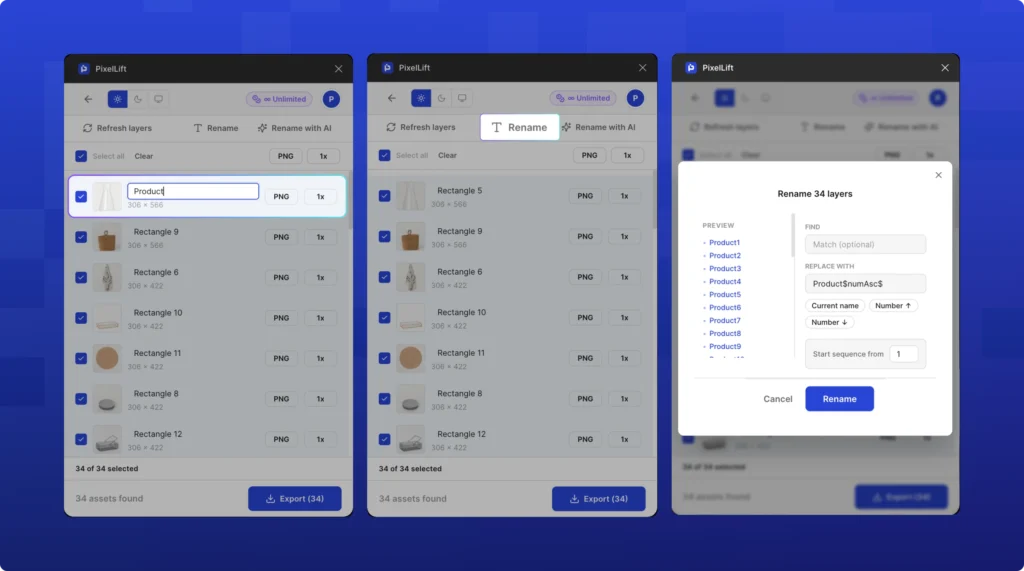
Naming conventions that hold up in production
- Match the asset to its purpose: use
hero-banner.webp, notFrame 23.webp. The name should tell the developer what goes where without a map. - Use hyphens, not underscores or spaces: file names with spaces break in some environments and create percent-encoded URLs. Hyphens are universally safe.
- Keep names lowercase: avoids case-sensitivity issues across Windows, Linux, and macOS file systems.
- Describe the content, not the version:
product-card-thumbnail.webpis more useful six months later thanthumbnail-v2-final.webp.
Step 4: Apply prefix and suffix in batch
Individual renaming handles one-off files. For enforcing a naming convention across an entire export batch, prefix and suffix are the right tool.
A prefix like acme- or project-name- scopes every file to the client or project, so assets from different clients don’t overwrite each other in a shared WordPress media library. A suffix like -mobile or -2x adds context to every file without you typing it on each one. One naming convention, applied to every file, every time, automatically.
Who needs prefix and suffix the most
Agencies working across multiple clients use prefixes to scope assets by client. When a developer uploads 30 files to a shared media library, the prefix makes every file immediately identifiable.
Developers who receive files from multiple designers use suffix to distinguish @1x from @2x versions (-1x, -2x) or mobile from desktop variants (-mobile, -desktop) without needing a separate folder structure.
Design teams with a house naming convention use prefix and suffix to enforce consistency across every export, regardless of who ran it. You set it once per run in PixelLift. Every file in the batch picks it up.
Step 5: Set scale for your target output
Different contexts need different output sizes. A hero image for a standard display needs @1x. The same image on a retina display needs @2x. A print asset may need @3x or higher. Getting this wrong means blurry images on high-density screens or unnecessarily large files on standard screens.
With Figma’s native export, you set a scale per layer. On 50 assets, that’s 50 separate configurations. With PixelLift, you set the scale once for the current run and it applies to everything in the batch. Export @1x for web, @2x for retina. Set it once, export everything.
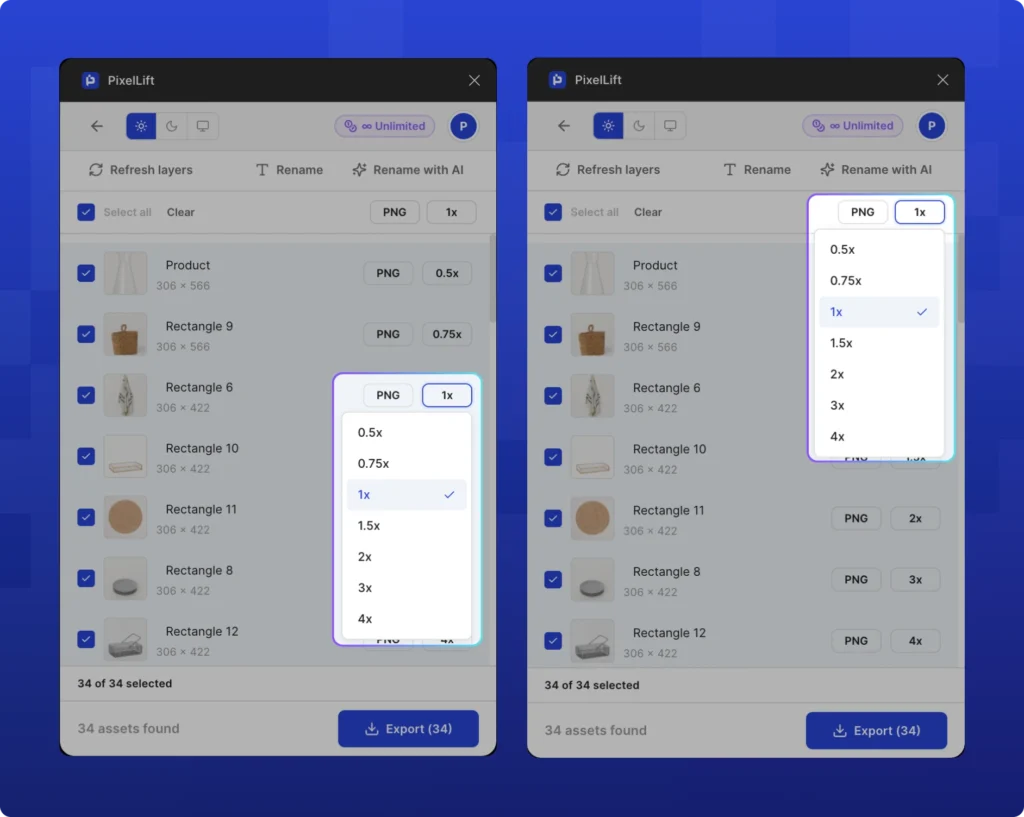
Step 6: Export in the right format for the web
Format is where most Figma exports fall short of what production actually needs. Figma’s native export gives you PNG, JPG, SVG, and PDF. For design review, that’s enough. For production web delivery in 2026, it isn’t.
Modern web performance demands WebP and AVIF. WebP cuts file sizes by 25-35% vs JPG. AVIF goes further, with reductions of up to 50% vs JPG and up to 80% vs PNG at equivalent quality. These directly affect Largest Contentful Paint (LCP), one of Google’s three Core Web Vitals signals used in search ranking.
Figma doesn’t export WebP or AVIF natively. The standard workaround: export PNG, run it through TinyPNG or Squoosh, download the converted file, rename it, re-upload. That’s five extra steps per image, every time, forever. PixelLift exports directly to PNG, JPG, WebP, AVIF, and SVG. Export WebP and AVIF straight from Figma. No TinyPNG. No Squoosh. No re-uploading.
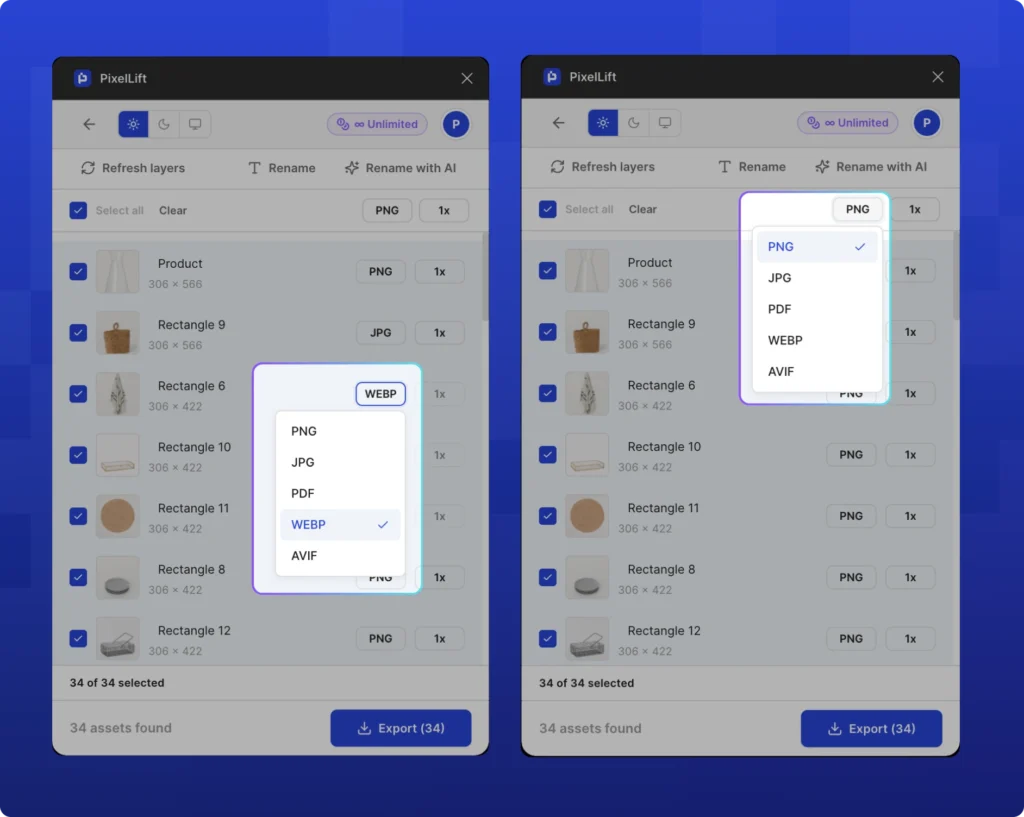
| Format | Best for | Figma native | PixelLift |
|---|---|---|---|
| WebP | Photos, hero images, UI illustrations, product shots | No | Yes |
| AVIF | High-quality web images where smallest file size matters | No | Yes |
| SVG | Icons, logos, illustrations (scalable, resolution-independent) | Yes | Yes |
| PNG | Assets requiring complex transparency, or when tools require PNG input | Yes | Yes |
| JPG | Photos where WebP isn’t supported (increasingly rare) | Yes | Yes |
Pro Tip: Use WebP as your default in 2026
AVIF is now supported in all major modern browsers including Chrome, Firefox, Safari, and Edge. For most projects, WebP as default and AVIF for image-heavy pages where LCP is a measurable problem is the right split. See the full breakdown in our guide to exporting WebP and AVIF from Figma.
Step 7: Bulk Export Assets from Figma
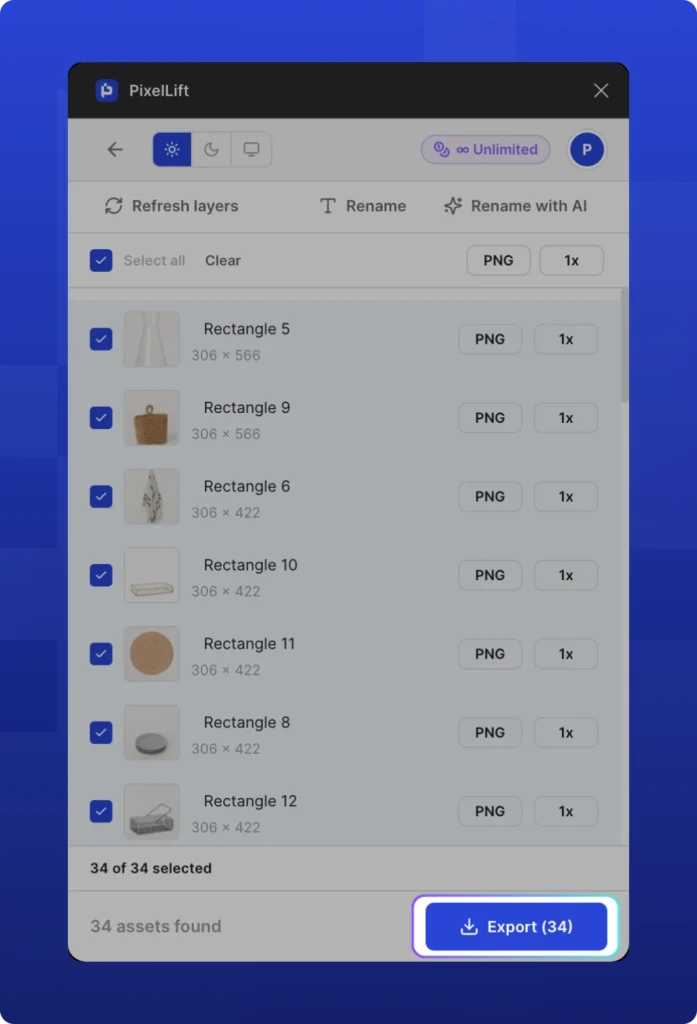
Once assets are set with right name, scale and format, you export all of them in one action. Not one at a time. All of them.
Figma does have a multi-export option, but it only works on layers that already have export settings applied. Setting up export settings on 50 layers before you can use “Export all” takes 10-15 minutes on its own, defeating the purpose.
With PixelLift, you configure format, scale, and quality once in the plugin for the current run. That configuration applies to every asset in the selection. Export 50 assets at once. Not one at a time.
A 60-asset export that takes 40 minutes through Figma’s native export takes about three minutes through PixelLift’s bulk export. On a project with multiple asset sets across multiple handoffs, it adds up to hours per project.
The complete Figma asset export checklist
Use this before every export run. It takes under a minute and prevents the most common re-export situations.
- Select the parent layer containing all target assets in the Figma canvas
- Open PixelLift and confirm all exportable assets are surfaced in the panel
- Deselect any assets not needed in this run
- Preview each asset (or spot-check a sample) to confirm content, crop, and background
- Rename any assets that still carry default Figma layer names
- Set prefix and/or suffix if the project requires a naming convention
- Set scale: @1x for standard web, @2x for retina, custom for other targets
- Set format: WebP or AVIF for raster web images, SVG for icons and logos, PNG for transparency-critical assets
- Export in one action
If you’re doing steps beyond those 10, you’re adding work that doesn’t need to happen.
Frequently asked questions about Figma asset export
Can Figma export WebP natively?
No. Figma’s native export supports PNG, JPG, SVG, and PDF. WebP and AVIF are not available in the default export panel. To export WebP or AVIF from Figma, you need a plugin. PixelLift supports both formats natively, with quality control included.
How do I export multiple Figma layers at once?
Figma has a basic u0022Export allu0022 option, but it only works on layers that already have individual export settings applied. For true batch export with format, scale, and naming applied to the entire selection, use PixelLift. Select any frame or group and the plugin surfaces every exportable asset inside it. Configure once, export everything in one click.
What image format should I use when exporting from Figma for the web?
WebP is the standard recommendation for photos and UI imagery in 2026. It delivers 25-35% smaller file sizes than JPG at equivalent quality, with full support in all modern browsers. AVIF delivers even smaller sizes. Use SVG for icons and logos, PNG for assets that require complex transparency, and JPG only when WebP is not an option.
How do I rename Figma exports before downloading them?
Figma’s native export renames files by letting you rename the underlying layer, which modifies the Figma file. PixelLift lets you rename assets inside the plugin before exporting without touching the source file. The renamed file downloads with the new name; the Figma layer name stays unchanged.
Does PixelLift work in Figma’s browser version?
Yes. PixelLift runs in both the Figma desktop app and the browser version. Install it once from the Figma Community and it’s available everywhere you use Figma.
How do I export @2x assets from Figma for retina displays?
In Figma’s native export, add an @2x setting to each layer’s export configuration. With PixelLift, set scale to 2x in the plugin and every asset in the batch exports at double resolution. Run a @1x pass and a @2x pass in under two minutes total, using the suffix setting to distinguish them (u003ccodeu003e-1xu003c/codeu003e and u003ccodeu003e-2xu003c/codeu003e).
What’s the difference between Figma’s native export and PixelLift?
Figma’s native export is built for one-off exports: a single frame, a quick review asset, a PDF for a client. PixelLift is built for production delivery: bulk export, in-plugin naming, batch prefix/suffix, scale and quality configuration, WebP and AVIF output, and in-plugin preview. It’s the export layer on top of Figma that makes large-scale asset delivery practical.
The faster export workflow starts with one install
The problems in this guide are fixable. Selecting assets one by one, re-exporting to check quality, renaming after download, running files through external compression tools: none of those steps have to exist in your workflow.
A design team at a growing agency standardized on PixelLift across their Figma workflow at the start of the year. By their third project, export had dropped from 90 minutes to under 15 on comparable asset counts. Naming was consistent across the team for the first time. The developer stopped sending re-export requests because the formats, names, and scale arrived right the first time.
And if you want to check how your current images are performing before you optimize, Google PageSpeed Insights will show you exactly which images are dragging down your Core Web Vitals score and by how much.
Install PixelLift on Figma Community and run your next export the fast way. Select, configure, export. Three steps instead of eight.