

You finish a design in Figma, hit Export, and PNG comes out the other end. It always has. It’s the default, it works, and nobody pushes back on it.
But PNG files are large. A product screenshot at @2x might be 400KB. The same image in WebP at 85% quality: around 95KB. Visually identical on screen. A 75% size reduction that the designer could have captured at export time, and didn’t, because PNG was the path of least resistance.
In 2026, the format for PNG vs WebP vs AVIF decision matters. Browser support for WebP and AVIF is effectively universal. The file size differences are real and they compound across every image on a page. This guide breaks down exactly what each format does, where it wins, where it falls short, and which one to reach for on your next Figma export.
What’s in this guide
- Why format choice matters specifically for designers (not just developers)
- PNG: what it’s good for and where it falls short
- WebP: why it’s the right default for most web assets
- AVIF: the format increasingly required for high-performance production
- A full comparison table: file size, quality, browser support, transparency
- A practical decision guide by use case: icons, photos, UI elements, hero images
- How to export WebP and AVIF directly from Figma without external tools
- How your format choice connects to Core Web Vitals scores
Why format choice matters specifically for designers
Most format comparison articles are written for developers: which format to implement in the <picture> tag, how to write WebP fallback logic, how to automate format conversion in a build pipeline.
This one is written for designers. That’s a different problem.
Developers can implement runtime format negotiation. They can serve AVIF to Chrome, WebP to Safari, and PNG as a last resort. Designers export files. Those files go to a handoff folder, a staging environment, or directly into a CMS. The format you choose when you hit Export is the format the website runs, unless a developer steps in to change it.
Most design teams don’t have that developer step in the export loop. The asset the designer exports is the asset that ships. If it’s PNG, the website gets PNG. If it’s WebP, the website gets WebP files that are already optimized and production-ready.
The format decision is yours to make. Making it well doesn’t require a build pipeline or a developer. It requires choosing the right format in your export tool. PixelLift’s file formats guide covers when to use each one. Here’s what each format actually gives you.
PNG: still useful, but not the right default for web
PNG (Portable Network Graphics) uses lossless compression. Every pixel is preserved exactly as it appears in Figma. No compression artifacts, no quality loss, no guessing about what the exported file will look like. It’s predictable and it works.
The cost is file size. Lossless compression preserves every pixel, and preserving every pixel takes space. A product hero image exported as PNG might be 500KB. A UI screenshot at @2x: 200-400KB. An icon set of 50 assets: potentially 3-4MB total.
Those file sizes matter on the web. Every byte has to travel from a server to a browser. Larger files mean slower page loads, higher bandwidth costs, and worse scores on performance metrics like Largest Contentful Paint.
When PNG is the right choice
- Source files that will be re-edited. Lossless PNG is the right format for a file that will be opened, adjusted, and re-exported. Compressing a source file with lossy compression degrades quality every generation.
- Print output. Print workflows often require lossless files with specific color profiles. PNG is appropriate here.
- Environments where WebP/AVIF genuinely aren’t supported. This case is increasingly rare in 2026, but it exists in some legacy systems and older embedded environments.
When PNG is the wrong choice
For web output, PNG is almost always the wrong choice. The lossless quality advantage is real but irrelevant: at 85% WebP quality, a UI screenshot is visually indistinguishable from its PNG equivalent on any display. Meanwhile, the WebP version is 70-80% smaller.
PNG’s role in web design is shifting. It’s the right format for working files and print. For web export, it’s been surpassed.
WebP: the right default for most web assets
Google developed WebP in 2010, but it took about a decade for browser support to reach the level where you could use it without worrying about compatibility. That threshold was crossed around 2020-2021. In 2026, WebP support exceeds 97% of global browser usage.
WebP does two things PNG doesn’t: lossy compression and smaller lossless files. Both matter for web output.
WebP lossless mode
WebP’s lossless mode produces files 20-26% smaller than PNG at the exact same quality. No compression artifacts. Full transparency support. Same visual output, smaller file. For icons and logos where lossless is important, WebP lossless is a direct upgrade over PNG with no tradeoffs.
WebP lossy mode
WebP’s lossy mode produces files 25-34% smaller than JPEG at equivalent visual quality, and unlike JPEG, WebP supports transparency. This is where the real gains are. A PNG screenshot at 400KB becomes a WebP at 80-100KB at 85% quality. The quality difference is imperceptible on screen.
For most web assets: UI elements, product images, marketing imagery, interface screenshots. WebP at 80-85% quality is the practical default. You get dramatically smaller files, full transparency support, and browser compatibility that covers virtually every user your site will ever see.
WebP browser support in 2026
Chrome: supported since version 23 (2012). Firefox: since version 65 (2019). Safari: since version 14 (2020). Edge: since version 18 (2018).
If you’ve been avoiding WebP because of browser support, that concern has been outdated for several years. At 97%+ global coverage, WebP is as safe to use as JPEG for web output.
AVIF: the format taking over in 2026
AVIF (AV1 Image File Format) is based on the AV1 video codec, finalized as a standard in 2019. It compresses images more efficiently than any other format in widespread use. The headline number: AVIF files are typically 50% smaller than JPEG and 20-30% smaller than WebP at the same perceptual quality.
That’s not a lab benchmark under ideal conditions. That’s what you get in practice when you export a product photo as AVIF versus WebP at matched visual quality. The AVIF is genuinely, measurably smaller.
Why AVIF compresses better
AVIF uses the AV1 codec as its compression engine. AV1 was built for video streaming, where squeezing quality into the fewest possible bytes is the central engineering challenge. Applied to still images, that algorithm produces better results than WebP’s older VP8/VP9 base, especially on:
- Photos and complex images with smooth gradients
- Skin tones and natural textures (fewer compression artifacts)
- High-detail images where WebP shows blockiness at the same file size
AVIF also supports HDR color, wide color gamut, transparency, and animation. It’s technically a more capable format than WebP in every dimension except one: encoding speed. Generating an AVIF file takes longer than generating a WebP. For a design export plugin, that’s a minor delay. For a server-side image pipeline processing thousands of images, it matters more.
AVIF browser support in 2026
Chrome: supported since version 85 (2020). Firefox: since version 93 (2021). Safari: since version 16 (2022). Edge: since version 121 (2024).
Global AVIF browser support in 2026 sits around 93-94%. That’s meaningful: roughly 6-7% of browsers can’t display AVIF. For a design export workflow, exporting in AVIF is still valid. The developer adds any necessary fallback at the HTML level using the <picture> element.
For the most image-heavy projects (e-commerce, media sites, photo portfolios), the compression gains from AVIF are significant enough to justify handling that 6% edge case.
PNG vs WebP vs AVIF: the full comparison
| PNG | WebP | AVIF | |
|---|---|---|---|
| Compression type | Lossless only | Lossy + lossless | Lossy + lossless |
| File size vs PNG | Baseline | 20-40% smaller | 40-60% smaller |
| Transparency | Yes | Yes | Yes |
| Animation | No | Yes | Yes |
| Browser support (2026) | Universal | 97%+ | 93%+ |
| Encoding speed | Fast | Fast | Slower |
| HDR / wide color gamut | Limited | No | Yes |
| Best for | Source files, print | Most web assets | Photos, hero images |
| Export from Figma natively | Yes | No | No |
| Export from Figma with PixelLift | Yes | Yes | Yes |
Real-world file size comparison
A product screenshot at 1200x800px, same source image:
- PNG: ~380KB
- WebP at 85% quality: ~95KB (75% smaller than PNG)
- AVIF at 65% quality: ~60KB (84% smaller than PNG)
Visual quality: indistinguishable on screen at normal viewing sizes. The compression artifacts in WebP at 85% and AVIF at 65% are not visible to the human eye on a typical monitor or mobile display. The file size difference is very real.
Key Takeaway: format choice is a production decision
These aren’t trivial differences. A page with 10 images replacing PNG with WebP saves roughly 2-3MB of data per page load. Multiply that by traffic volume and it becomes a meaningful reduction in bandwidth costs and a direct improvement in page speed scores.
Which format to choose: a practical guide by use case
Icons and logos
Use SVG or WebP lossless.
If your icon is vector-based in Figma, export it as SVG. SVG scales infinitely, has near-zero file size, and renders crisp at any resolution. It’s the right format for any purely vector graphic.
If the icon contains raster elements, complex gradients, or effects that don’t export cleanly as SVG, use WebP lossless. It’s 20-30% smaller than PNG at identical quality, with full transparency support.
UI elements and interface screenshots
Use WebP at 80-85% quality.
UI elements have flat areas, sharp edges, and text that renders cleanly even at moderate compression levels. WebP at 80-85% handles these characteristics well. The compression artifacts at this quality level are invisible on UI content. File sizes are 70-80% smaller than PNG.
Photography and product images
Use AVIF where browser support allows; WebP as the safe baseline.
Photos benefit most from AVIF’s compression algorithm. The gains on photographic content with smooth gradients, skin tones, and complex textures are larger than on flat UI elements. A 1MB product photo in PNG might be 180KB in AVIF with no visible quality difference.
If you need maximum compatibility and don’t want to think about AVIF fallbacks, WebP at 85% quality is still a massive improvement over PNG for photography. Use AVIF when the project warrants it and the developer has confirmed they can handle browser fallbacks.
Hero images and above-the-fold banners
Use AVIF or WebP at 85-90% quality.
Hero images are typically the largest images on a page and the most likely to be the Largest Contentful Paint element. Every KB you remove from the hero image directly improves LCP time. This is where format choice has the most measurable impact on page performance.
At 90% quality, hero images in WebP or AVIF are visually excellent and dramatically smaller than PNG. For high-traffic sites, this is the highest-leverage format optimization you can make.
Animated images
Use WebP or AVIF animation instead of GIF.
GIF is a 1987 format that supports only 256 colors and produces large files for animations. Both WebP and AVIF support animation with better compression, full color depth, and dramatically smaller file sizes. If you’re using animated GIFs anywhere in your workflow, they should be replaced with WebP animation.
Source files and working files
Use PNG.
When a file will be re-edited, processed further, or handed off to a print vendor, lossless PNG is right. Applying lossy compression to a working file degrades quality every generation. PNG is the correct format for master files and anything going to print.
How to get WebP and AVIF out of Figma
Here’s the practical problem. Figma doesn’t export WebP or AVIF natively. Its built-in export panel gives you PNG, JPG, and SVG. That’s it.
So for most designers, the format decision looks like this: export PNG, open TinyPNG or Squoosh, upload the file, download the converted WebP, repeat for every asset. For a 40-asset batch, that’s 40 round-trips through an external tool. Most designers don’t do it. They export PNG and move on.
That’s the workflow problem PixelLift solves. The plugin exports WebP and AVIF directly from Figma. You choose your format in the plugin panel, set quality once, and the files come out in the right format without an external conversion step.
Export WebP and AVIF straight from Figma. No TinyPNG. No Squoosh. No re-uploading.
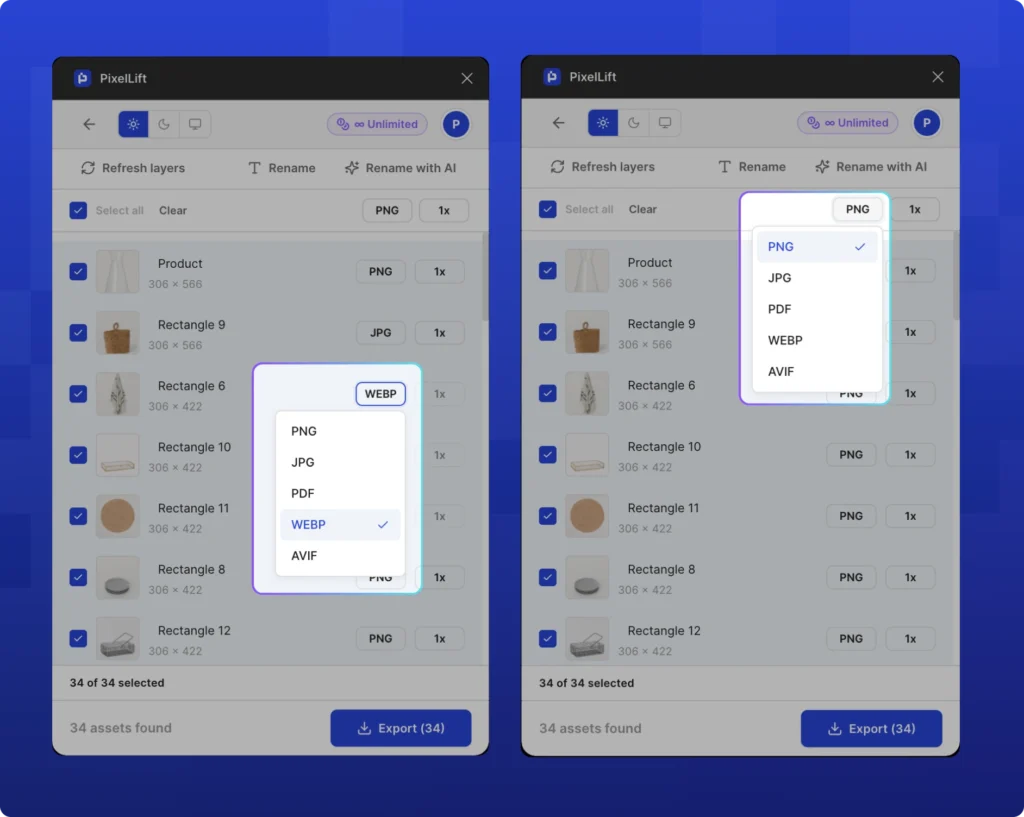
This matters because it removes the friction that keeps designers defaulting to PNG. If getting WebP requires an extra tool and extra steps, most people skip it. If it’s the same export process they already use, just with a different format selected, they do it every time.
For a step-by-step walkthrough of format settings, quality levels, and exporting batches in modern formats, see how to export WebP and AVIF from Figma.
Pro Tip: set WebP as your default format in PixelLift
You don’t have to change your format on every export. Set WebP as your default in the PixelLift panel once and every subsequent export will use it automatically. Switch to AVIF for photography and hero images when the project calls for it.
Format choice and Core Web Vitals
Google’s Core Web Vitals include Largest Contentful Paint (LCP), which measures how long it takes for the largest visible element on the page to load. For most pages, the LCP element is an image: a hero banner, a product photo, or a featured illustration.
Image format is one of the most direct inputs to LCP time. A WebP hero image that’s 75% smaller than its PNG equivalent loads in a fraction of the time. An AVIF at 84% smaller loads faster still. The browser has less data to download, parse, and render before the LCP element appears.
Google’s PageSpeed Insights flags pages serving PNG or JPEG for web output with a “Serve images in next-gen formats” recommendation. Switching hero images and product photos from PNG to WebP typically improves PageSpeed scores by 10-25 points for image-heavy pages.
This is the performance case that makes format choice a business decision, not just a technical detail. Slower LCP scores mean worse search rankings, higher bounce rates, and lower conversion rates. The format the designer chooses at export time has downstream effects on all of those numbers.
Why This Matters: format affects your search rankings
PageSpeed score is a ranking signal. A designer who exports WebP instead of PNG is directly contributing to the site’s search visibility. It’s one of the few design decisions with a measurable SEO impact that doesn’t require a developer to implement.
Frequently asked questions
Should I use WebP or AVIF in 2026?
Both, depending on the asset. WebP for icons, UI elements, and general web assets where broad compatibility matters. AVIF for photos and hero images where the superior compression makes a measurable difference. If you want one format for everything, WebP at 80-85% quality is a solid universal default that covers 97%+ of browsers.
Is PNG ever the right choice for web output?
Yes, in specific cases: source files that will be re-edited, assets going to print, or situations where you genuinely know the target environment lacks WebP support (rare in 2026). For most web output, WebP or AVIF is the better choice.
Does WebP support transparency like PNG?
Yes. WebP supports full alpha channel transparency. Any asset that uses PNG for transparency (logos over colored backgrounds, icons with transparent areas, overlapping UI elements) can be exported as WebP instead. The transparent WebP will be 20-30% smaller than the equivalent PNG.
What quality setting should I use for WebP exports?
For most web assets: 80-85%. This delivers files that are visually indistinguishable from 100% quality while being significantly smaller. For critical marketing imagery or product photos: 85-90%. For simple icons and flat graphics: WebP lossless (quality 100) is still 20-30% smaller than PNG.
Can developers use AVIF with a WebP fallback?
Yes. The standard pattern uses the HTML u003ccodeu003eu0026lt;pictureu003eu003c/codeu003e element to serve the best format each browser supports:u003cbru003eu003ccodeu003eu0026lt;pictureu003e u0026lt;source srcset=u0022image.avifu0022 type=u0022image/avifu0022u003e u0026lt;source srcset=u0022image.webpu0022 type=u0022image/webpu0022u003e u0026lt;img src=u0022image.pngu0022 alt=u0022…u0022u003e u0026lt;/pictureu003eu003c/codeu003eu003cbru003eThe browser downloads only one file: AVIF if supported, then WebP, then PNG as the final fallback. This is the implementation pattern for getting maximum compatibility while delivering the smallest file to each user.
Will AVIF eventually replace WebP?
Likely yes, over the next few years. AVIF’s compression advantage is significant and browser support is closing the gap. For now, WebP is the safer default for projects where you want to minimize compatibility concerns. AVIF is worth targeting for high-traffic, image-heavy pages where every kilobyte of reduction has a measurable performance impact.
Why doesn’t Figma export WebP and AVIF natively?
Figma’s built-in export has supported PNG, JPG, and SVG for years, and the team has been slow to add modern format support. It’s a known limitation. The workaround is a plugin. PixelLift adds WebP and AVIF export directly to the Figma workflow so you don’t need a conversion step after export.
The format decision is simpler than it looks
For most web projects in 2026, the answer is WebP. It’s 20-40% smaller than PNG, browser support is near-universal, it handles transparency, and it works for icons, UI elements, photos, and banners alike. Set it as your default and you’ll export better files on every project without thinking about it.
For photography and hero images, AVIF is worth targeting. The 20-30% additional size reduction over WebP is real and it compounds on image-heavy pages.
For a look at the full Figma export workflow (formats, naming, scale settings, and bulk export), see the complete guide to exporting assets from Figma.
The practical barrier has always been getting WebP and AVIF out of Figma without extra steps. Install PixelLift from the Figma Community and your next export can be in WebP or AVIF, with the same process you already use: just a better format coming out the other end.